
Nest Thermostat Troubleshooting: Delays, Power Issues, and No Heat or Cool
November 25, 2026
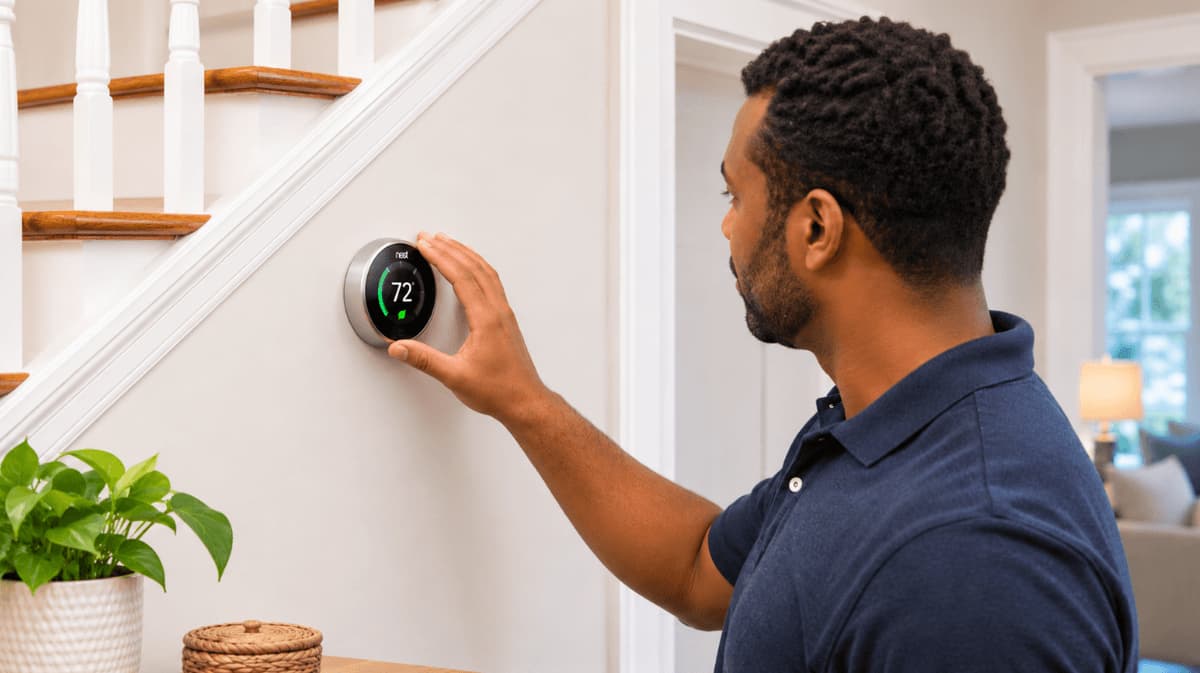
Look at your Nest's screen first. It tells you which way to troubleshoot. A dark screen or a power alert means you follow the power path. A lit screen with no heat or cool means you check the system instead.
Both paths share one check you can do without tools: pull the air filter and look at it. If it's clogged, a clean one may be the whole fix.
Pick your path below. Then take the match quiz, or shop air filters at Filterbuy.
Nest troubleshooting in two paths
What does your Nest screen show?
Dark or alerting: power path
Lit, nothing runs: system path
Seeing “Delayed” just once? That's normal. Wait out the countdown. Only a countdown that keeps restarting belongs on Path A.
Safety first: Turn off power at the breaker before you touch any wire. If you smell burning, see scorched wires or the breaker keeps tripping, shut the system off and call a pro.
Filterbuy guidance built from Google Nest Help. Codes and menus vary by Nest model. Filterbuy isn't affiliated with Google. Nest is a trademark of Google LLC.
Filter looked clogged? Get the right one.
A clean filter is the one fix both paths share. Answer a few quick questions and we'll match you to the right filter for your home.
Already know your size?
TL;DR
Nest thermostat not working? Start with power. A Nest charges its battery from your HVAC wiring, so a wiring fault or a shut-down furnace can stall heating or cooling and knock it off Wi-Fi. Filterbuy, an American filter maker, checks the air filter next, because Google ties a clogged filter's overheating to Nest power loss.
Key Takeaways
One "Delayed" message is normal. Nest waits a moment before switching equipment on or off to limit wear.
Repeated delays, low-battery alerts or "No power" codes often mean a power problem. Google recommends a C wire or Nest Power Connector.
"Offline" can be a power problem too. A Nest turns off Wi-Fi first to save its battery.
A clogged filter can cause Nest power faults. An overheated furnace may stop powering it.
Your Nest doesn't know which filter you own. Filterbuy recommends matching its runtime-based reminder to your filter's depth.
Why Is My Nest Thermostat Not Working?
When a Nest thermostat isn't working, power is often the reason. Every Google Nest thermostat runs on a battery (AAAs in the 2020 Nest Thermostat) that tops up from your HVAC system's low-voltage wires. If that supply drops, the thermostat can stall heating or cooling and go dark.
Google Nest Help lists the usual suspects: system power switched off or a tripped breaker, a display that isn't fully seated on its base, loose or misplaced wires, a blown control-board fuse, or an incompatible system. It also names a system that shut off from overheating, often because of a clogged air filter. That's why Filterbuy checks the filter right after the on-screen message; pulling it usually takes no tools.
Source: Google Nest Help, November 2026. Codes and menus vary by Nest model.
What Does the Nest Thermostat Delayed Message Mean?
The Nest thermostat delayed message means the thermostat is waiting before it starts the heat or AC. One countdown is normal. Google explains that Nest's maintenance band builds in a short wait before the system turns on or off, which prevents unnecessary wear.
A countdown that keeps restarting isn't. Google's guide to strange heating or cooling behavior groups repeat delays and short on-off cycling with power problems, and it recommends a C wire or the Nest Power Connector for steady current. See Filterbuy's guide to what a C wire is.
Why Does My Nest Thermostat Say Low Battery or No Power?
A Nest thermostat low battery alert means the battery is draining faster than your HVAC wires can recharge it. A Nest thermostat no power alert (help codes E298, E448 or M20) means the thermostat isn't detecting any power from the system. Google traces both to the same causes: incorrect wiring, a needed C wire that isn't connected, or HVAC equipment that has stopped supplying power.
Start with your model, then work outward:
Nest Thermostat (2020): Replace both AAA alkaline batteries. If the alert comes back, check the C wire next. Filterbuy's guide shows how to change your thermostat batteries.
Nest Learning Thermostat and Nest Thermostat E: The battery isn't replaceable, so pull the display and charge it by USB from a wall charger, not a computer. Google's guide to troubleshooting a Nest thermostat that won't turn on says charging can take up to an hour. If it's still dark after that, something else is wrong.
Check power at the source. Make sure the HVAC breaker and furnace switch are on and the furnace door is shut, since many doors have a safety switch.
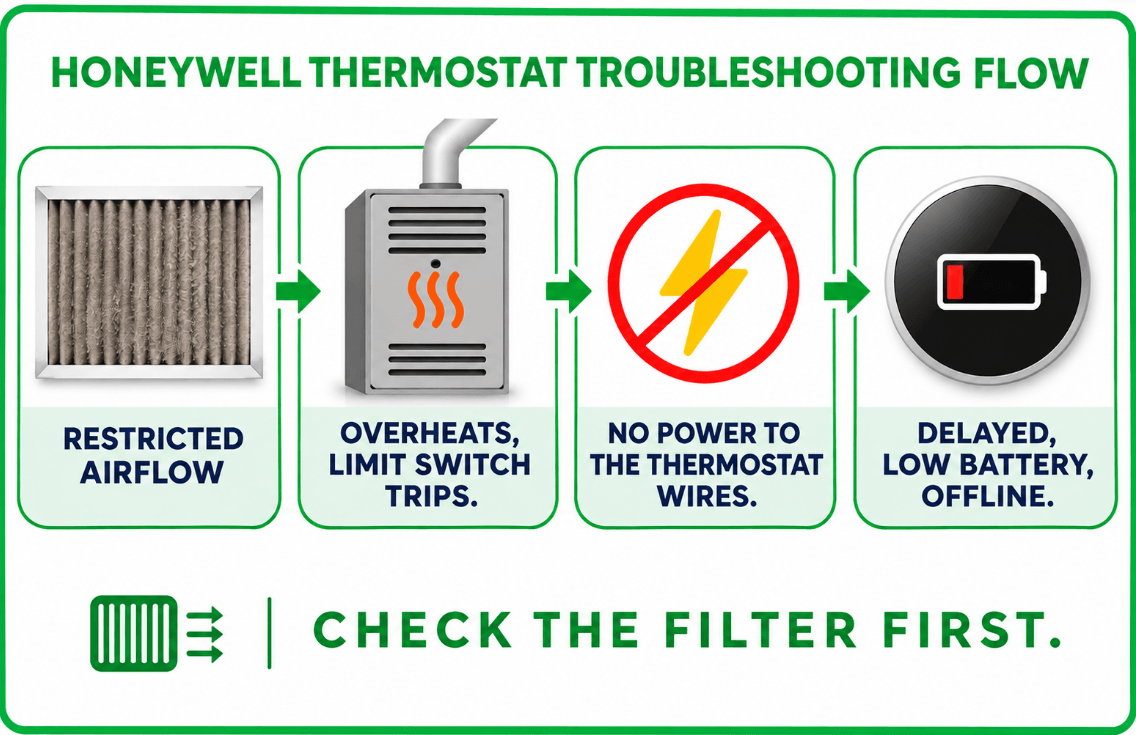
Pull the air filter. A furnace that overheated and locked out stops powering the thermostat.
Reseat the wires. With the power off, make sure each wire is fully inserted. See Filterbuy's thermostat wiring colors guide.
Millivolt, high-voltage, proprietary and solid-fuel systems aren't compatible with Nest at all.
Why Is My Nest Thermostat Not Heating or Not Cooling?
If your Nest thermostat is not heating or not cooling but the screen works, the cause is often the equipment or its airflow, not the thermostat. If the screen turns orange or blue but nothing starts, Google suggests a simple test: reinstall your old thermostat. If the system still won't run, it needs service.
For a Nest thermostat not heating: Google's System Health Monitor guide says reduced airflow from a dirty filter can make a furnace overheat, and that repeated on-off shutdowns can damage it. Swap in a clean filter, restart the furnace at its switch, then watch one full cycle. For other causes, see Filterbuy's guide to why your heat won't reach the temperature on your thermostat.
For a Nest thermostat not cooling: The same Google guide says dirty filters can ice the AC's evaporator coil. ASHRAE, the HVAC engineering society, agrees that the coil may freeze when airflow gets too low. For other causes, see Filterbuy's guides to why your AC won't reach the temperature on your thermostat and thermostat clicking with no heat or AC.
Why Is My Nest Thermostat Offline or Won't It Connect to Wi-Fi?
A Nest thermostat offline in the Google Home app has often lost either power or its network, so check the battery first. Google says a Nest turns off Wi-Fi to save charge before it shuts down. If the battery looks fine, restart the router and the thermostat, then reconnect in the Google Home app.
If your Nest thermostat won't connect to Wi-Fi at all, check Google's recommended Wi-Fi and router settings for Nest:
Band: 1st and 2nd gen Nest Learning Thermostats only work on 2.4 GHz.
Security: WPA2 is recommended; WEP-ASCII isn't compatible.
Network type: Guest networks, mobile hotspots and open networks aren't recommended.
Offline after a trip? Google's vacation guide says a Nest can't charge while HVAC power is off, so it eventually shuts down and shows as offline. Use Eco Temperatures or Off mode instead; both still guard against extreme temperatures.
Can a Dirty Air Filter Cause Nest Thermostat Problems?
Yes. A clogged air filter restricts airflow, and Google lists a furnace that shut off from overheating, often because of a clogged filter, as one reason a Nest loses power. The symptoms can look like a failing thermostat: delays, low battery, "No power" or no heat. Filterbuy's guide to dirty air filter symptoms covers other warning signs.
As an American-made and owned air filter company building 1-, 2-, 4- and 5-inch filters, Filterbuy looks at a struggling Nest from the filter slot outward. ENERGY STAR advises inspecting, cleaning or changing filters once a month, and it warns that a dirty filter can raise energy costs and damage equipment.
"Because we make filters, I start every 'dead thermostat' question at the filter slot. If it's dirty, replace it and let the thermostat recharge before you call anyone."
– Michelle Wan, Brand Manager & Air Quality Writer, Filterbuy
About the Nest thermostat filter reminder: Google's Nest air filter reminder guide says Nest estimates filter life from how long your system runs, and the reminder isn't on by default. Turn it on in the Google Home app, the Nest app or on the thermostat, then adjust the timing under Advanced configuration.
Filterbuy adds one step: set the reminder to the filter you own. Our air filter replacement schedule runs from every 1–3 months for 1-inch filters to every 9–12 months for 5-inch filters. On the day you swap, reset the "change filter" reminder. Filterbuy Auto Delivery ships the right size on the same schedule at 5% off, with a reminder three days before each shipment.
When Should You Call an HVAC Pro?
Call a licensed HVAC technician if a Nest help code returns after you've fixed the obvious causes, if you need a new C wire run, or if the system also fails with your old thermostat. If you smell burning or see scorched wires, or the breaker keeps tripping, shut the system off and call right away.
Line voltage at the furnace or air handler can injure you, so turn off power at the breaker before touching any wire.
Before You Call, Write Down
The exact message and help code (a photo of the screen works).
The Voc, Vin and Iin readings under Settings > Technical Info > Power, on a Learning Thermostat or Thermostat E.
Whether the system ran with your old thermostat.
When you last changed the filter, plus its size and depth.
A photo of the thermostat wiring, taken before anything is disconnected.
Google says Nest support can walk you through tests without reinstalling your old thermostat, and these notes make that call quicker.
"When a Nest shows 'No power,' I start at the furnace before I touch the thermostat. I check the breaker, the furnace switch and the door switch, then pull the filter. If those look fine, I look for a loose wire or a blown fuse on the control board."
– David Clark, Licensed HVAC Technician
Different thermostat brand? See Filterbuy's guide to a thermostat not working.
Supporting Statistics
About 12.8 million U.S. homes had a smart thermostat in 2020.
That works out to roughly 12% of U.S. homes with a thermostat.
Source: U.S. Energy Information Administration, 2020 Residential Energy Consumption Survey, Table HC6.1
Heating and cooling use about half of U.S. home energy.
Space heating accounts for 42% of residential energy use and air conditioning for 9%.
Heating caused about 34,200 U.S. residential building fires a year from 2017 to 2019.
Frequently Asked Questions
Does My Nest Thermostat Need a C Wire?
Not always. Google's C wire guide says a Nest Thermostat E or Nest Learning Thermostat needs one if it has power issues or its battery often drains. Heating-only, cooling-only, zoned and heat pump systems may also need a C wire or Nest Power Connector.
How Do I Restart My Nest Thermostat?
Go to Settings > Restart on a Nest Thermostat or 4th gen Learning Thermostat, or Settings > Reset > Restart on older models. Google's restart guide confirms a restart keeps all settings.
How Long Does a Nest Thermostat Take to Charge?
Several minutes, or up to an hour on a very low battery, per Google's won't-turn-on guide. After a long power-off, allow up to 3 hours.
Why Is My Nest Thermostat Light Blinking Red or Yellow?
It's charging. Google says the 4th gen shows a yellow light and 3rd gen or earlier models blink red. No light means the battery has drained.
How Often Should I Change My Filter With a Nest Thermostat?
Follow your filter's depth. Filterbuy's replacement schedule runs from every 1–3 months for 1-inch filters to every 9–12 months for 5-inch. Set Nest's reminder to match.
Glossary
Google Nest thermostat: Google's line of Wi-Fi thermostats, including the Nest Learning Thermostat, Nest Thermostat E and Nest Thermostat.
C wire (common wire): A thermostat wire that completes the 24-volt circuit to give a smart thermostat steady power.
Help code: A letter-and-number code, such as E298, that a Nest shows when it detects a problem.
Maintenance band: Nest's built-in wait before switching your system on or off.
Nest Power Connector: A Google accessory installed at the HVAC equipment that powers a Nest thermostat when there's no C wire.
Filterbuy: An American-made and owned manufacturer of 1-, 2-, 4- and 5-inch HVAC air filters and the company behind Filterbuy Auto Delivery.
Sources
Google Nest Help, Troubleshoot when your thermostat won't turn on
Google Nest Help, Learn to fix strange heating or cooling issues
Google Nest Help, Learn about your thermostat's maintenance band
Google Nest Help, Troubleshoot a "No power" alert on a Nest thermostat (E298, E448 or M20)
ASHRAE, Top Ten Things Consumers Should Know About Air Conditioning
Filterbuy isn't affiliated with or endorsed by Google. Nest is a trademark of Google LLC.